 5s
⚡ Generate
5s
⚡ Generate
Rebuild detail at larger sizes instead of stretching pixels: the finishing step for covers, banners and print — run last, after every edit is done.
Pick an effect, upload your photo, and the built-in recipe does the rest. Same photo, far more reliable results.
You have been writing prompts by hand. Templates skip all of that — pick a card below, upload your photo, and get the same scene in one click.
5s
⚡ Generate
 5s
⚡ Generate
5s
⚡ Generate
 IMAGE
⚡ Generate
IMAGE
⚡ Generate
 5s
⚡ Generate
5s
⚡ Generate
 5s
⚡ Generate
5s
⚡ Generate
 5s
⚡ Generate
5s
⚡ Generate

 IMAGE
⚡ Generate
IMAGE
⚡ Generate
 5s
⚡ Generate
5s
⚡ Generate
 IMAGE
⚡ Generate
IMAGE
⚡ Generate
 5s
⚡ Generate
5s
⚡ Generate
 NEW 5s
⚡ Generate
NEW 5s
⚡ Generate
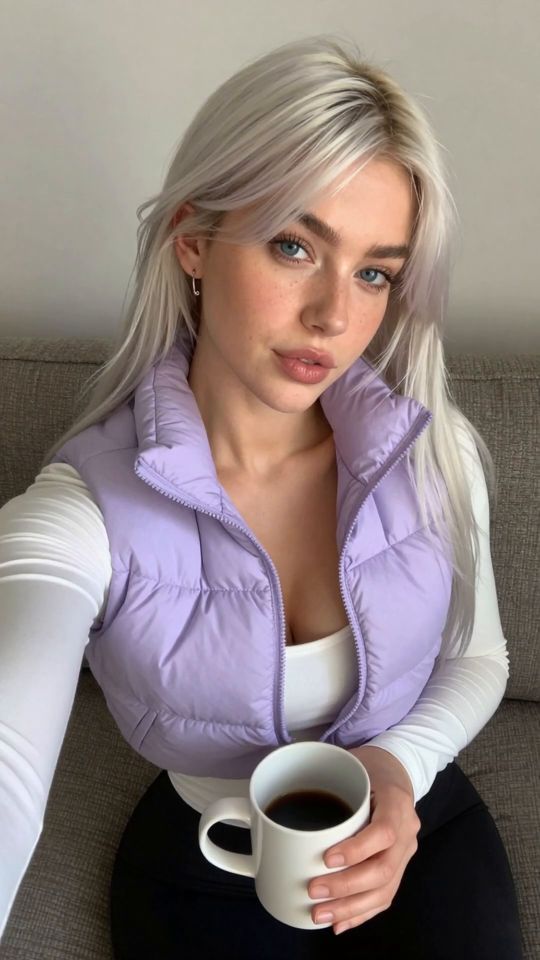
 5s
⚡ Generate
5s
⚡ Generate
Ordinary resizing interpolates: it averages neighbouring pixels and calls the blur between them “bigger”. An AI upscaler does something different — it re-renders the image at the larger size, reconstructing the detail that a real larger capture would have contained: individual hair strands instead of a hair-coloured smear, fabric weave instead of smoothness, skin texture instead of plastic. It is a generation step, guided tightly by your image, which is why it belongs at the end of the chain: everything it rebuilds, it rebuilds from what you hand it.
That cuts both ways. Hand it a finished piece and it produces a finished piece, larger. Hand it a flawed draft and it will lovingly reconstruct the flaws at high resolution.
| Factor | Right for |
|---|---|
| 2× | Web finals: posts, covers, profile heroes — the everyday finish |
| 4× | Print, large banners, and tight crops that must hold up close |
Bigger is not automatically better: each factor costs more credits and rebuilds more aggressively. Match the factor to the largest place the image will actually appear.
| It can | It cannot |
|---|---|
| Rebuild skin, hair and fabric texture | Repair broken anatomy — that is the Editor‘s job, before upscaling |
| Sharpen soft edges and fine detail | Invent a different pose, outfit or scene |
| Make a tight crop publishable | Recover detail that was never in any version of the image |
The composition and colours stay; fine detail is rebuilt at the larger size. Compare before and after in your account — the original is kept either way.
After, always. Edit at working size (cheaper, faster), then upscale the final once.
Yes — your own uploads can be upscaled, under the same rights-and-consent standard as every tool in the studio.
Yes: the Video Upscaler, which holds detail consistently across frames.
Drafts, edits, animation and finishing share one credit balance and one private library. Start with the piece you need today.
Open the generatorAnalyzing your photo…
Your result will appear right here — keep this open.
0:00
Your image is deleted after generation.
Browse filesFailed jobs are refunded automatically. Results land in My Collection.